
WeChat Customer Service only supports Docker deployment or server Python deployment. A publicly reachable callback URL is required; local run mode is not supported.
1. Prerequisites
Required resources:- A server with a public IP
- A registered and verified WeCom account
- WeChat Customer Service capability enabled
It is recommended to create a dedicated WeCom custom app for Customer Service rather than reusing the existing
wechatcom_app one — otherwise the two channels will compete for the same callback URL.2. Create a WeCom Custom App
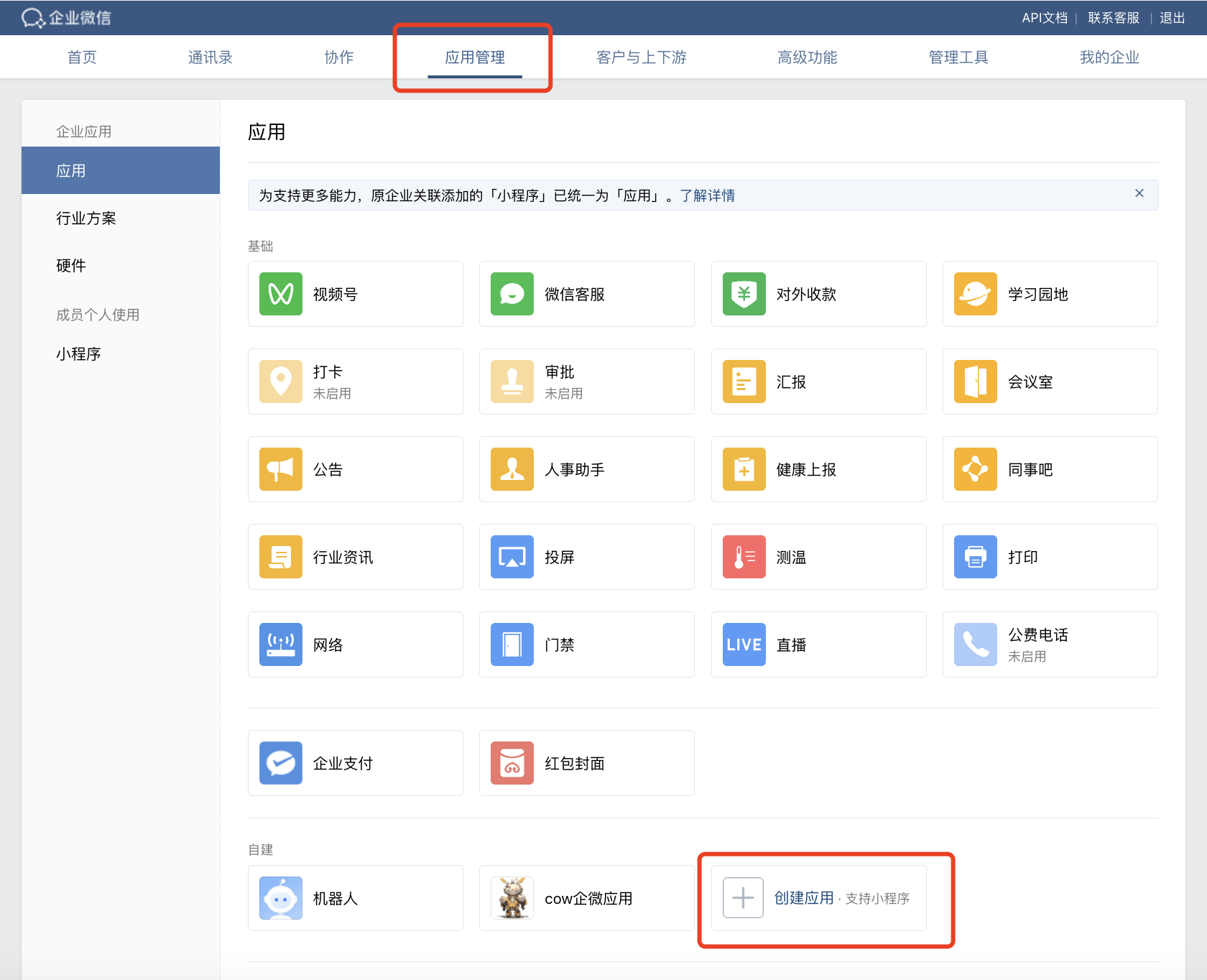
- In the WeCom Admin Console, go to Application Management → Create Application:
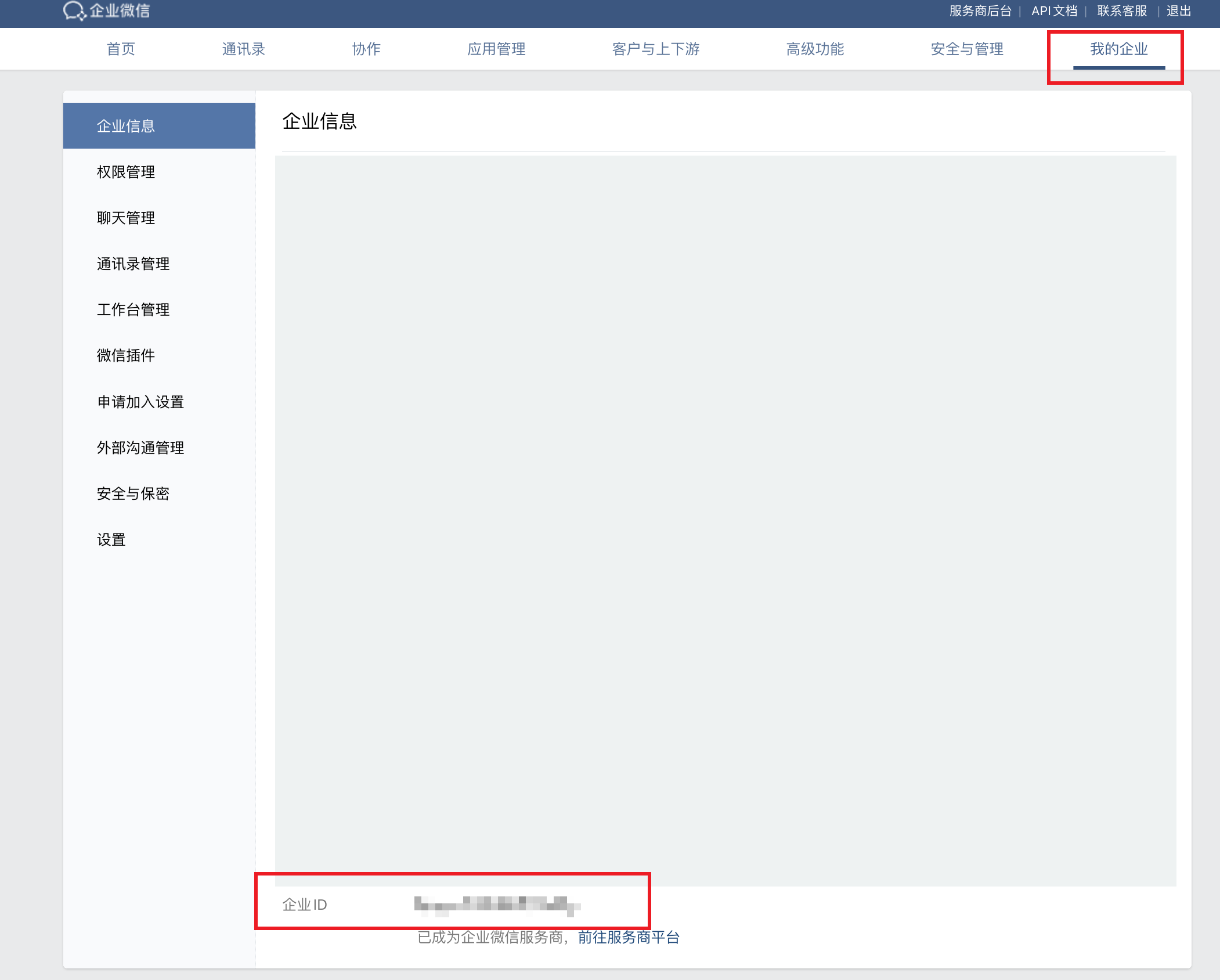
- Click My Enterprise and find the Corp ID at the bottom of the page (it goes into
wechat_kf_corp_id):
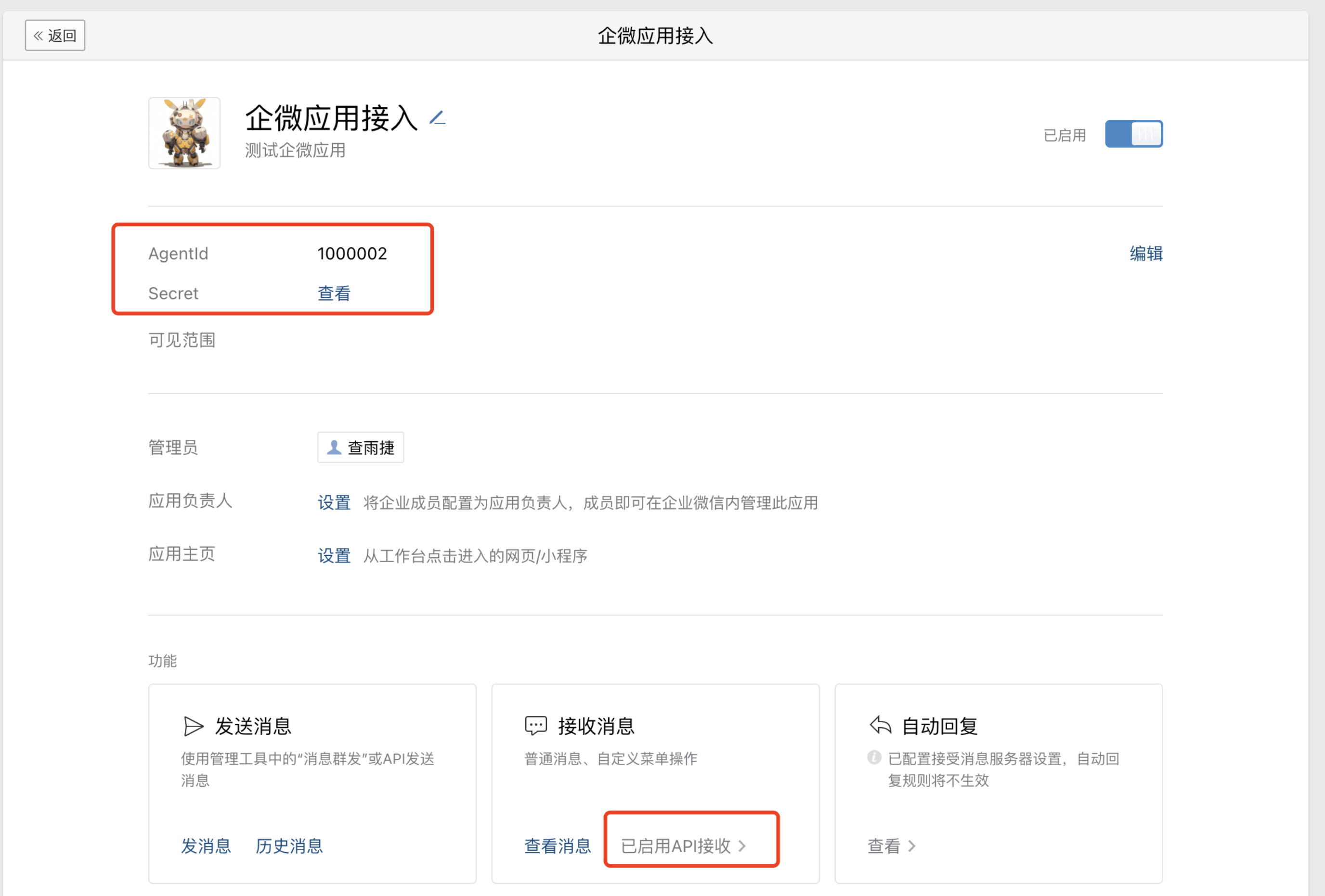
- Open the app you just created and click “View” next to Secret. The Secret will be pushed to the admin’s phone via the WeCom app, where it can be viewed:
- Open the app’s Receive Messages → Set API Reception page, click “Random Generate” to generate the Token and EncodingAESKey, and save them:

Saving the API reception configuration will fail at this point because the program has not started yet. Come back to save it after the project is running.
3. Configuration and Run
Fill in the 4 fields collected from the previous step (Corp ID / Secret / Token / EncodingAESKey):- Web Console
- Config File
Start the Cow project and open the Web Console. Go to the Channels menu, click Connect, choose WeChat Customer Service, fill in Corp ID / Secret / Token / AES Key (port defaults to 9888, configurable), and click Connect.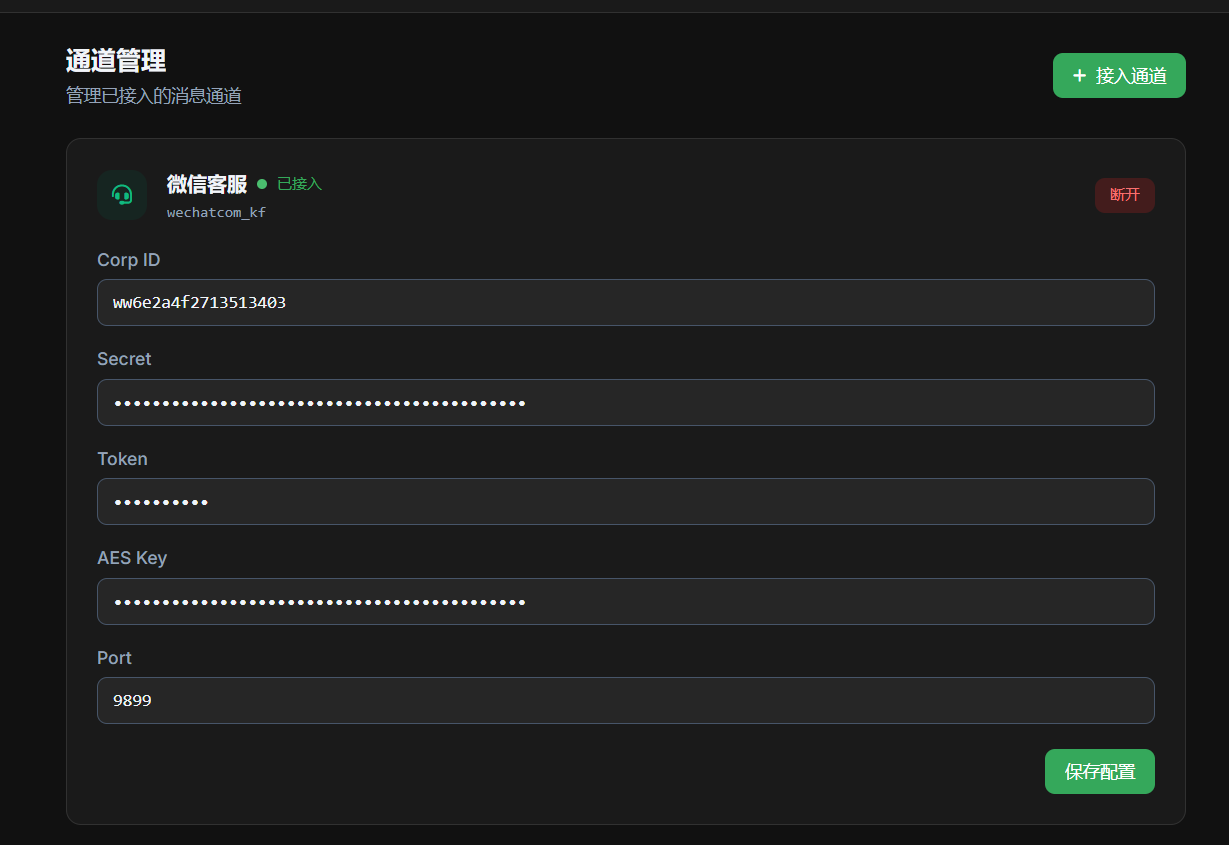
Listening on http://0.0.0.0:9888/wxkf/, the program is running successfully. You need to open this port externally (e.g., allow it in the cloud server security group).
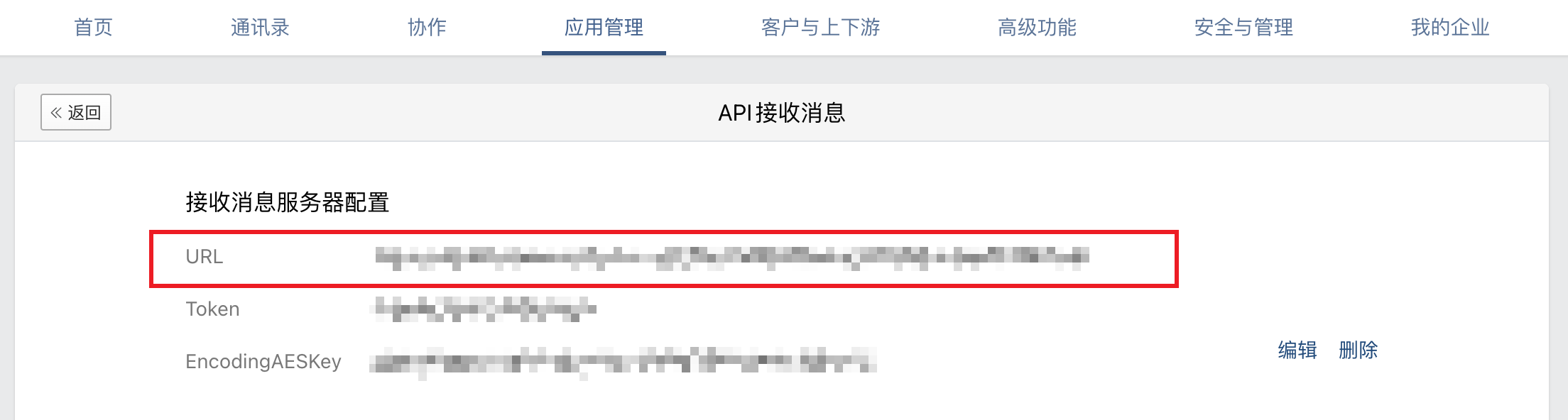
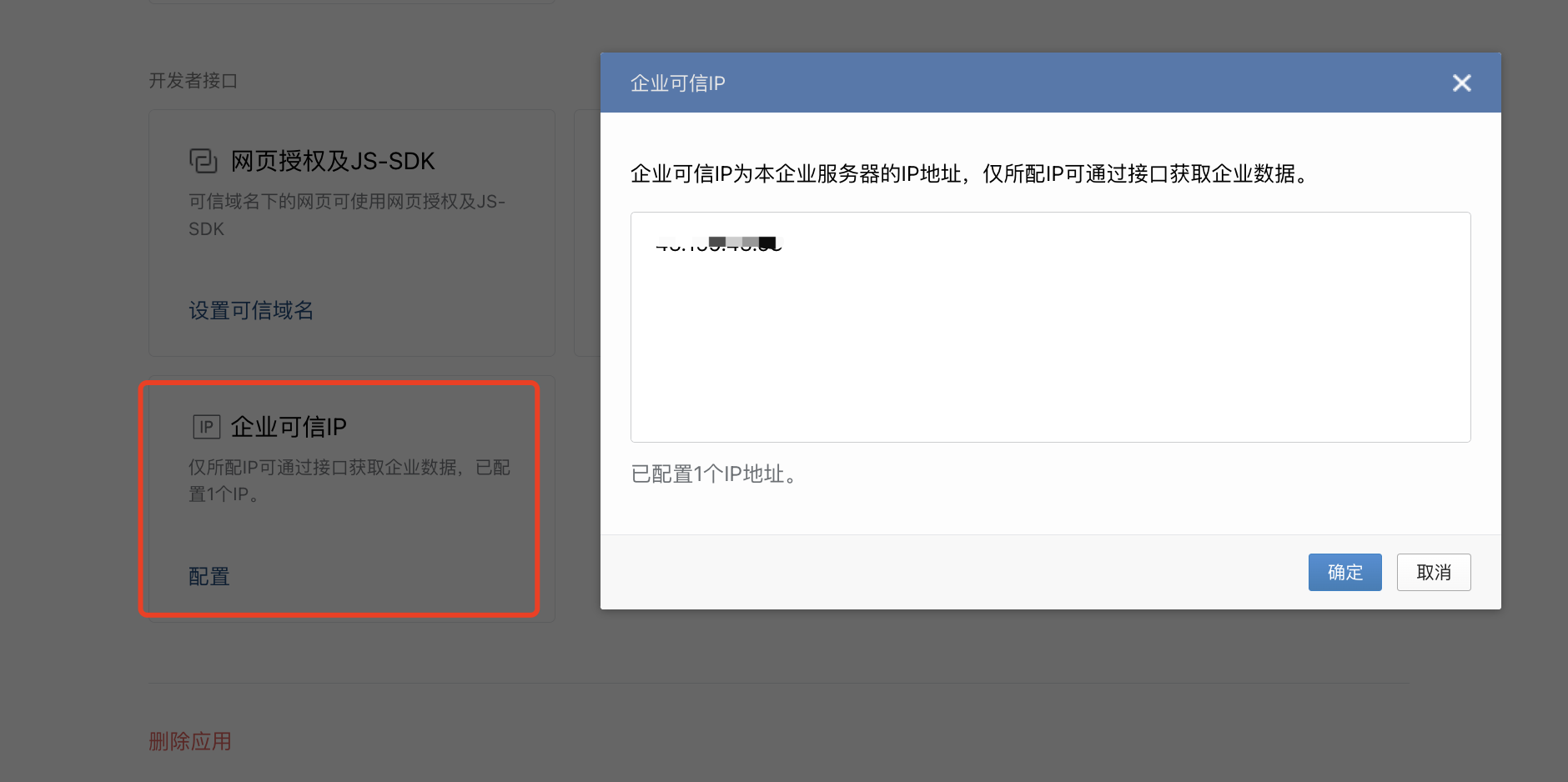
Then go back to Receive Messages → Set API Reception in the WeCom console and set the callback URL to http://<your-host>:9888/wxkf/, then click Save. After saving successfully, you also need to add the server IP to Enterprise Trusted IPs, otherwise messages cannot be sent or received:
4. Bind a WeChat Customer Service Account
In the WeCom Admin Console, go to WeChat Customer Service, create a customer service account, and bind it to the custom app you created above: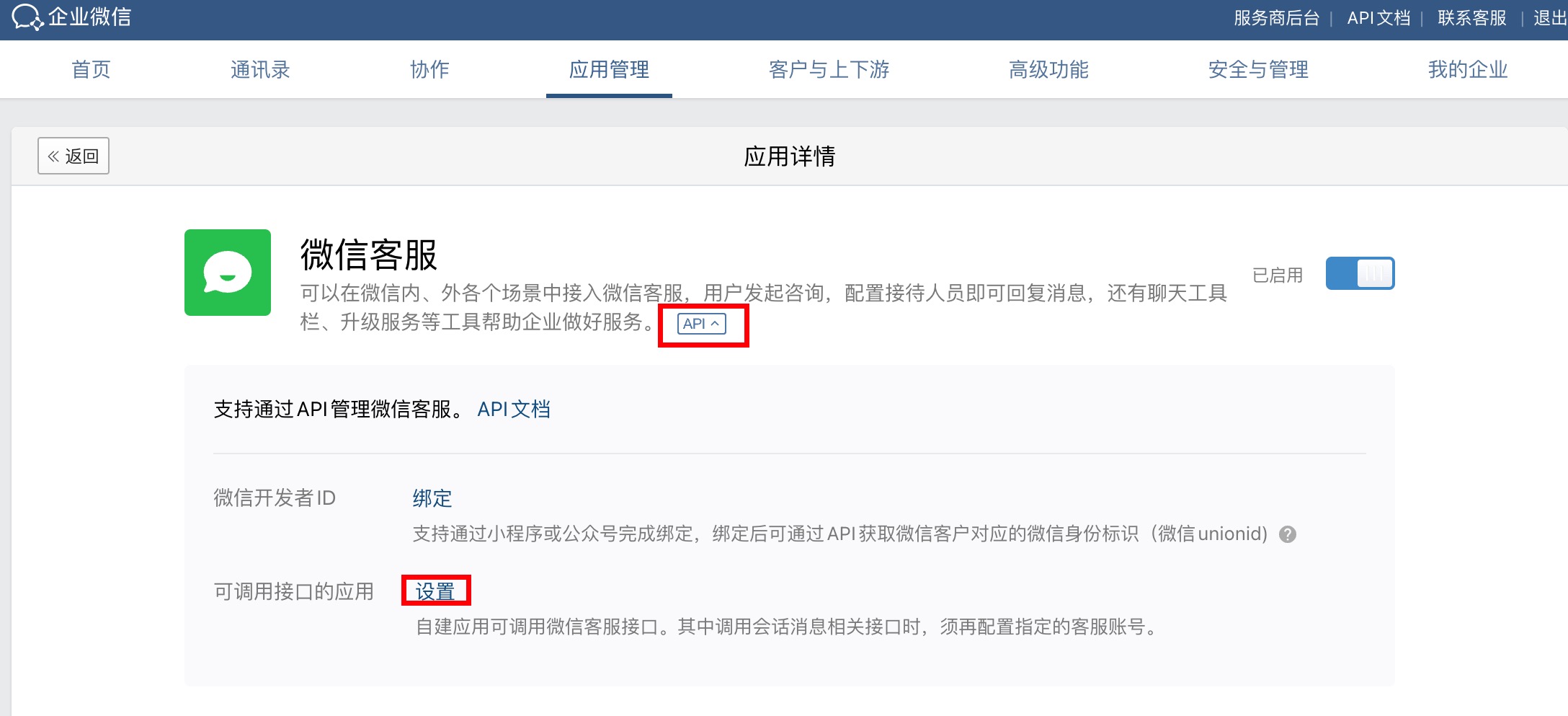
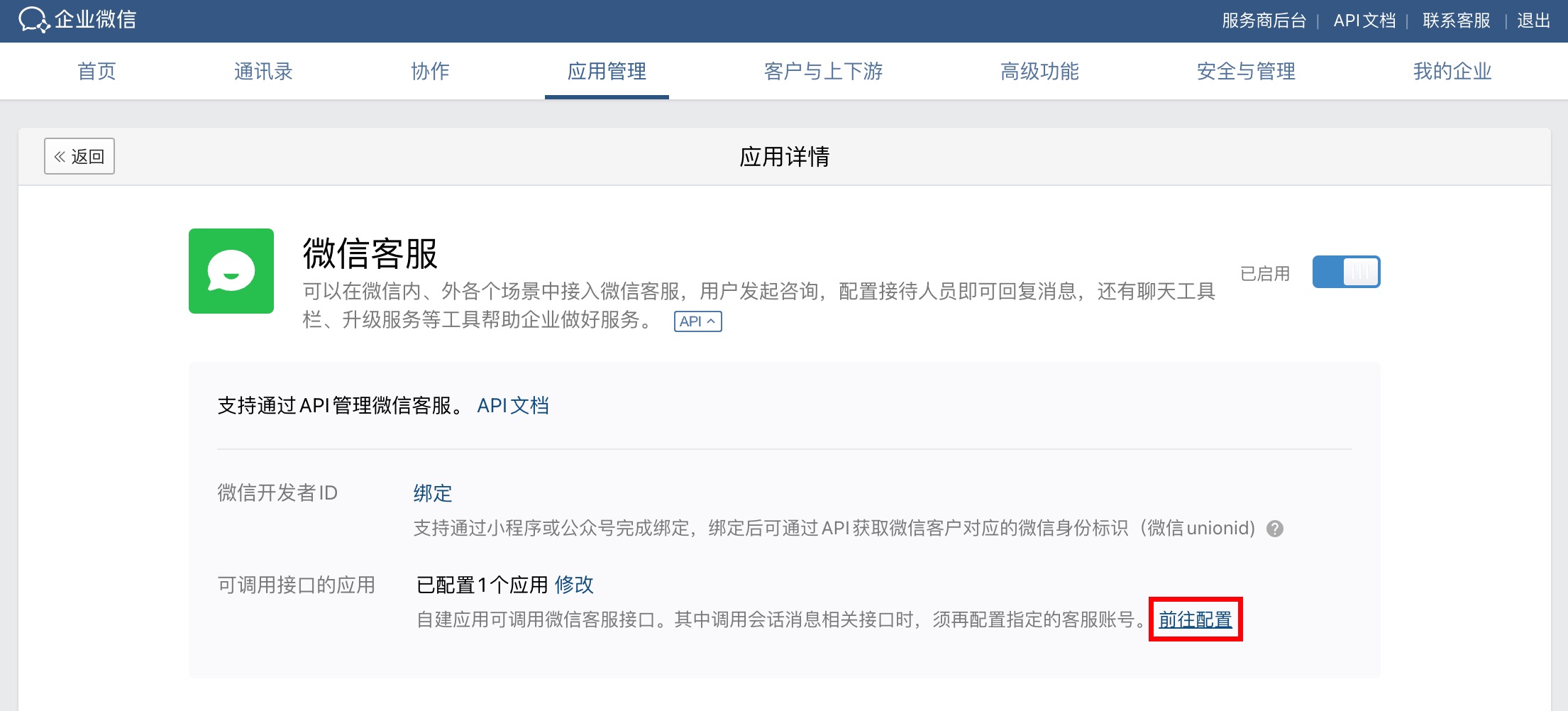
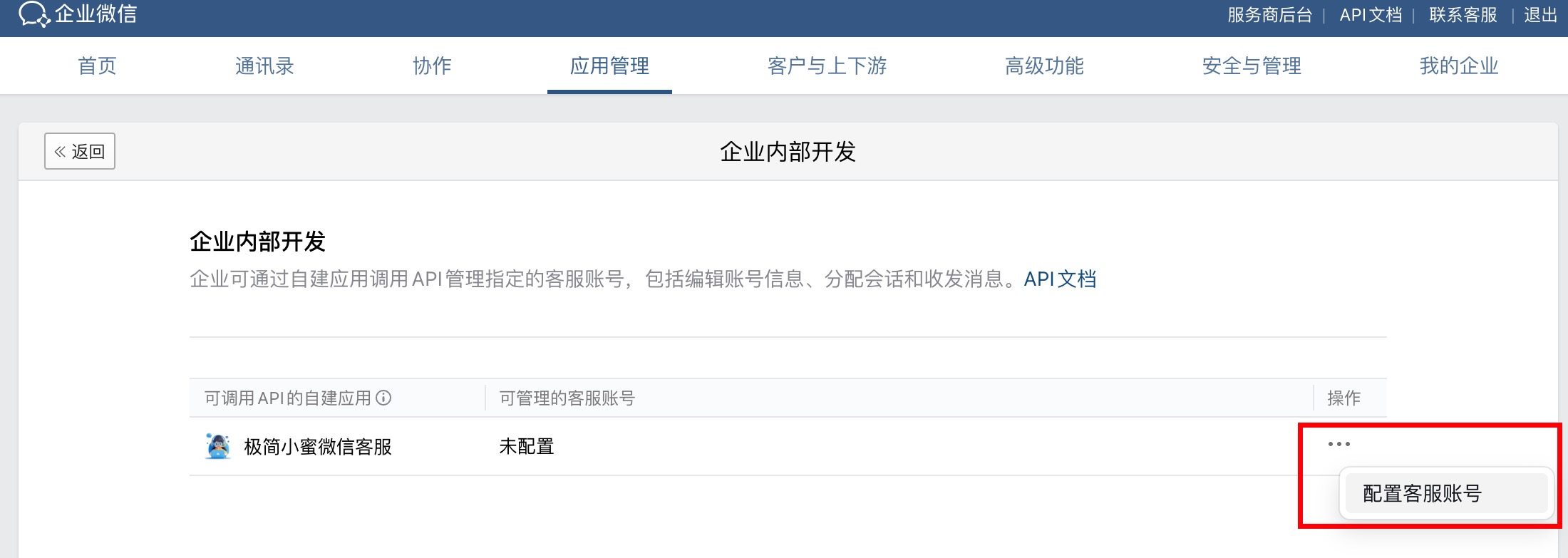 After binding, go to WeChat Customer Service → Account Details, and under “Access Link”:
- Click “Copy Link” to get an access link like
https://work.weixin.qq.com/kfid/kfcd83e5896b9ba07be - Click “Generate QR Code” to get the corresponding QR code
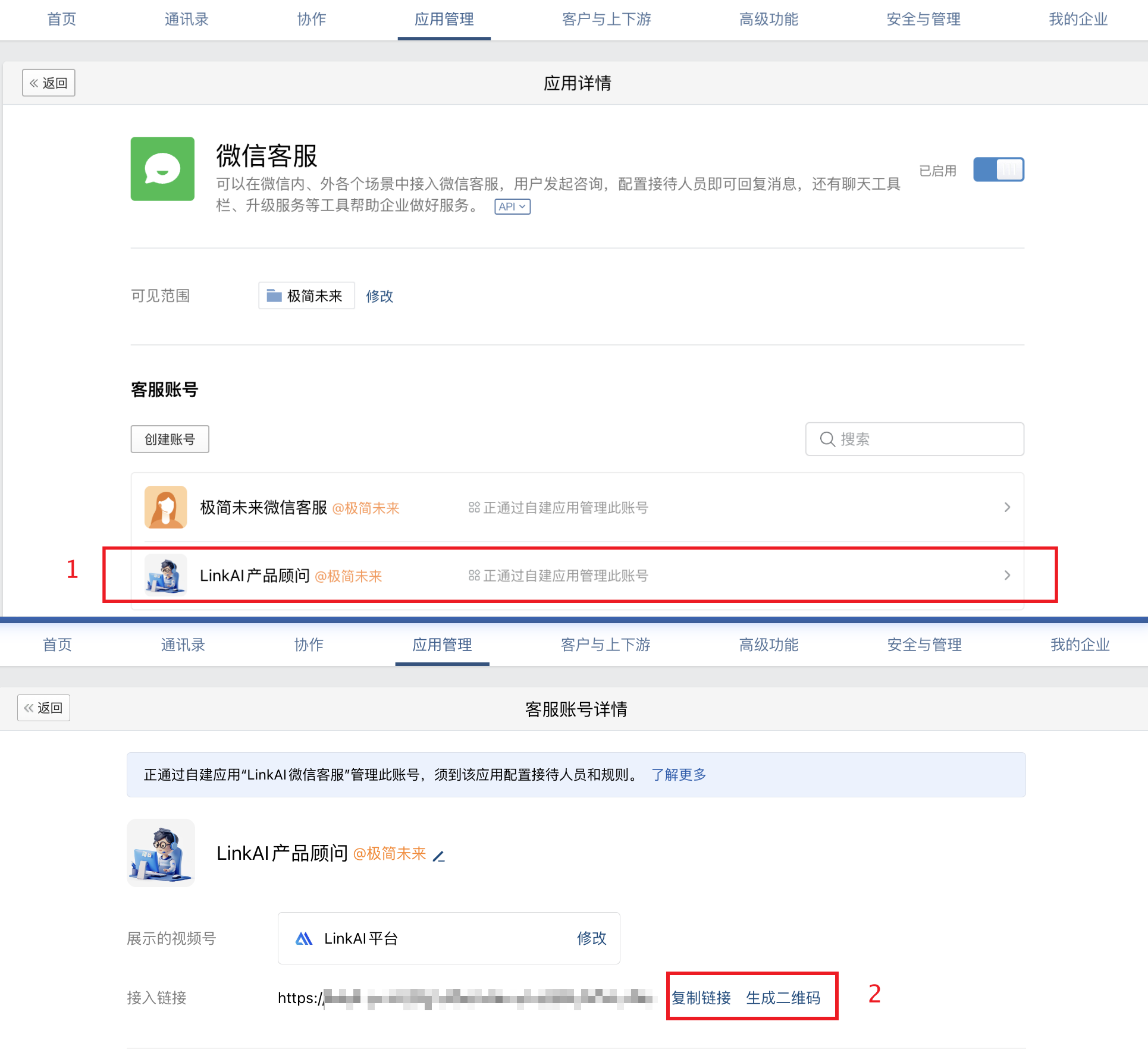
5. Usage
After WeChat users enter the customer service conversation via the link or QR code, they can chat with the AI across multiple turns, with support for text, image, and voice messages: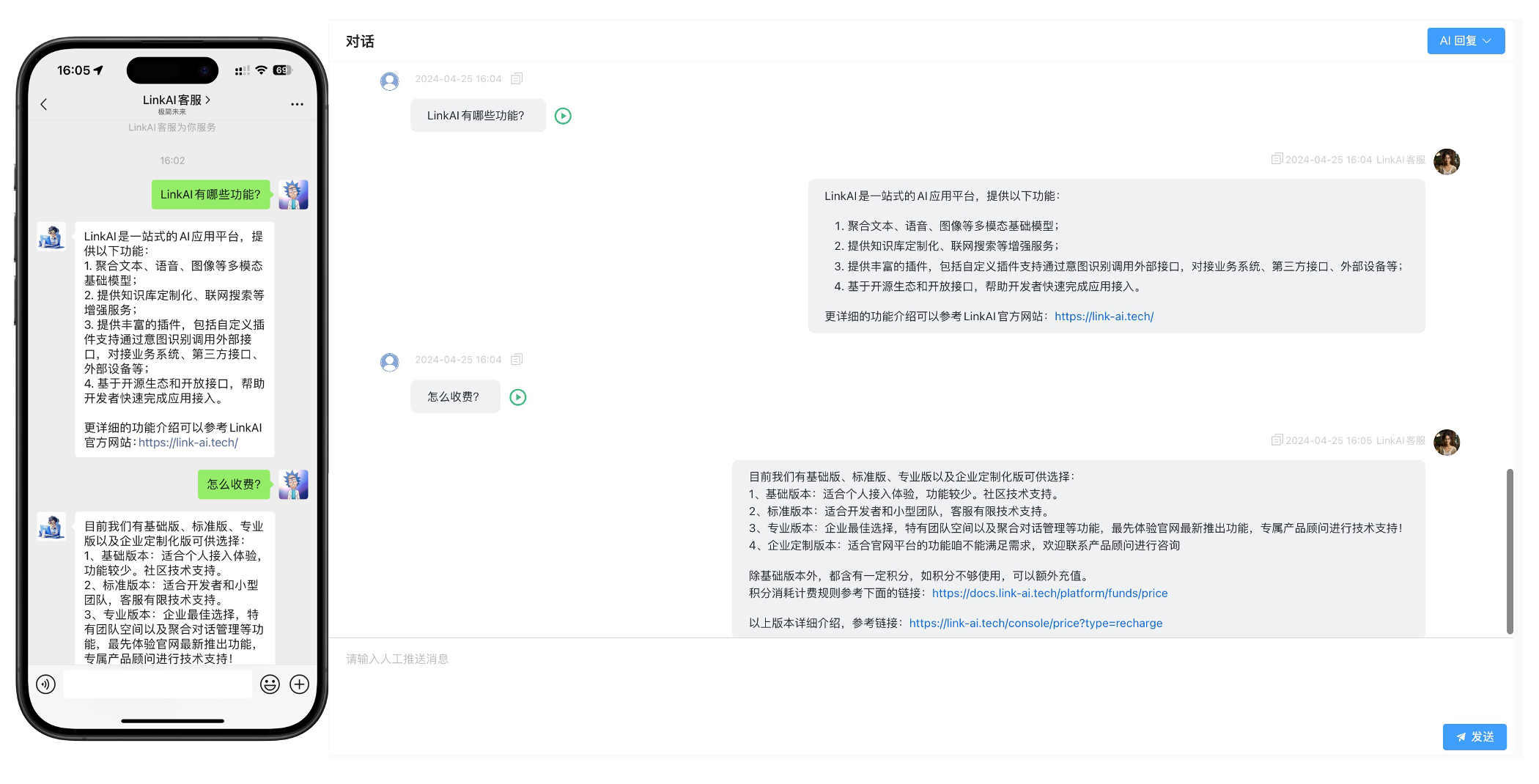 Beyond that, leveraging the official WeChat ecosystem, WeChat Customer Service can also be embedded into Official Accounts, Mini Programs, Video Channels and more. See the WeChat Customer Service → Access Scenarios section in the WeCom Admin Console for details:
