
1. Create App
- Go to DingTalk Developer Console, log in and click Create App, fill in the app information:

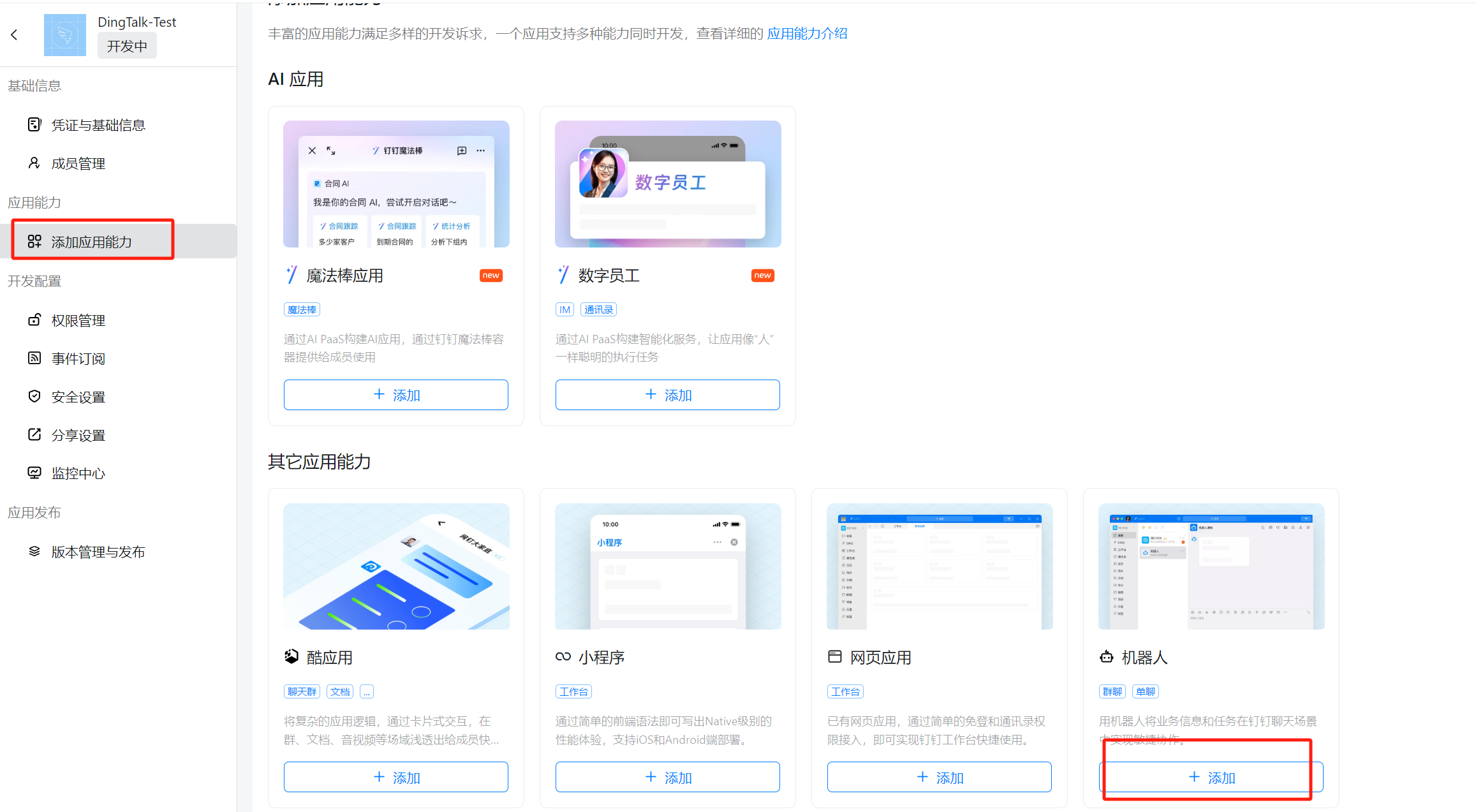
- Click Add App Capability, select Robot capability and click Add:
Optional: to reply with streaming Markdown cards, request theCard.Instance.WriteandCard.Streaming.Writepermissions under Permission Management, and add"dingtalk_card_enabled": truetoconfig.json.
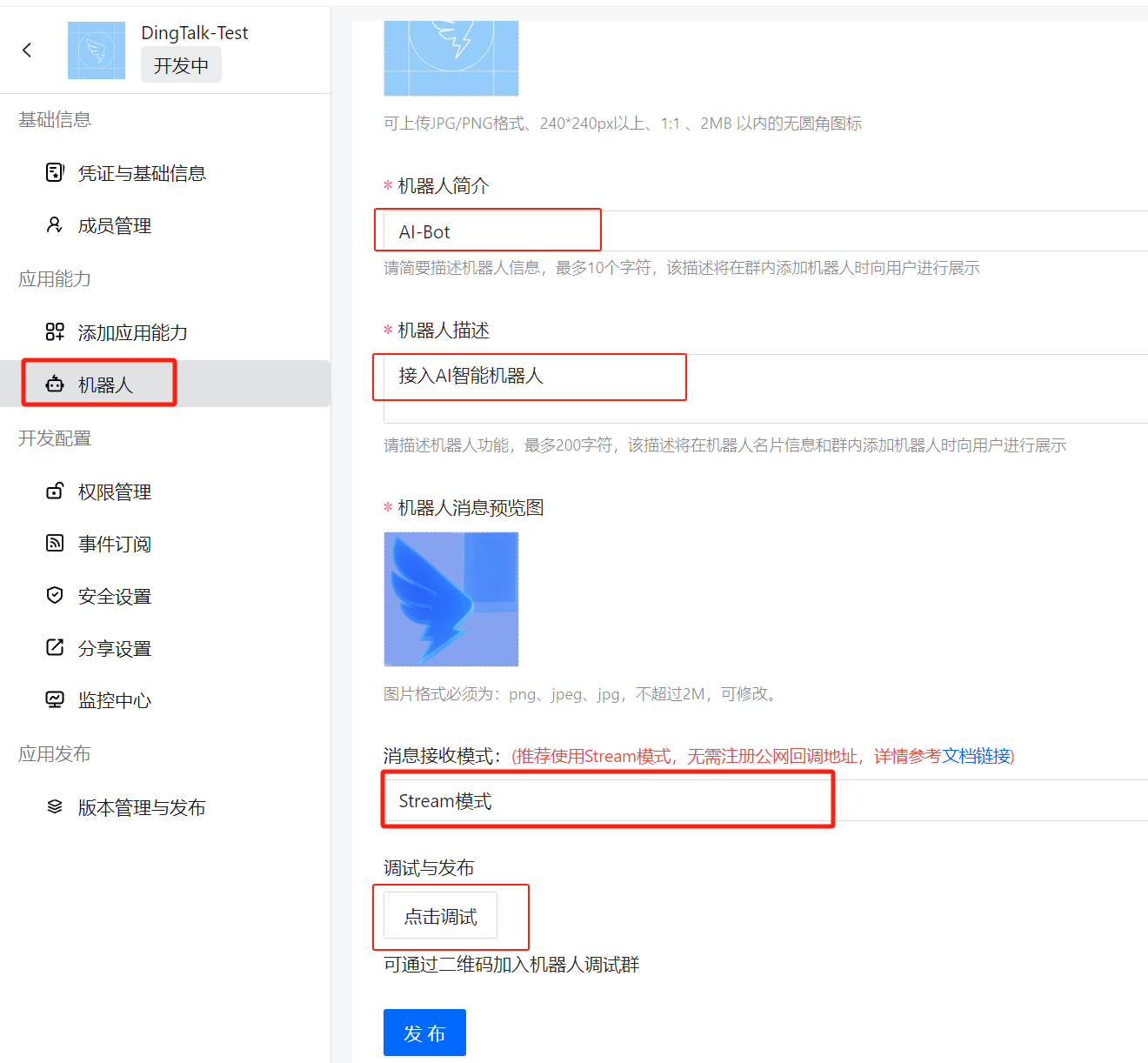
- Configure the robot information and click Publish. After publishing, click “Debug” to automatically create a test group chat, which can be viewed in the client:
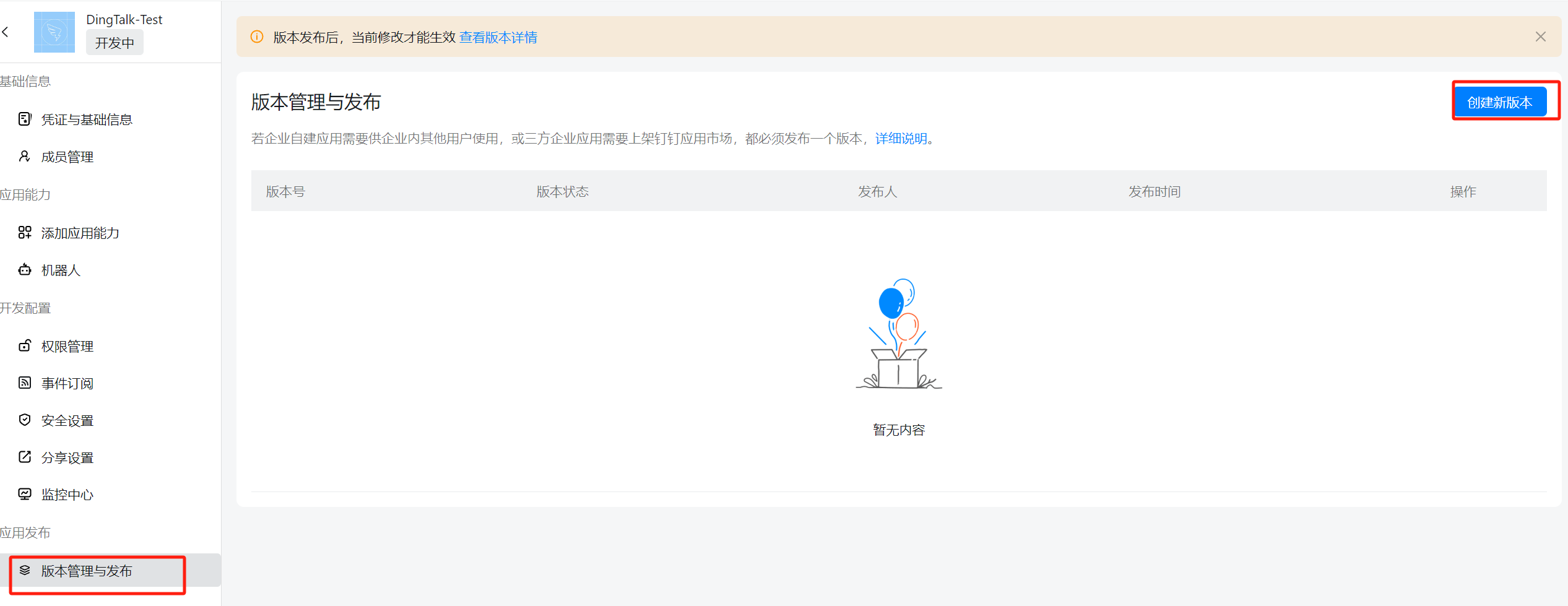
- Click Version Management & Release, create a new version and publish:
2. Project Configuration
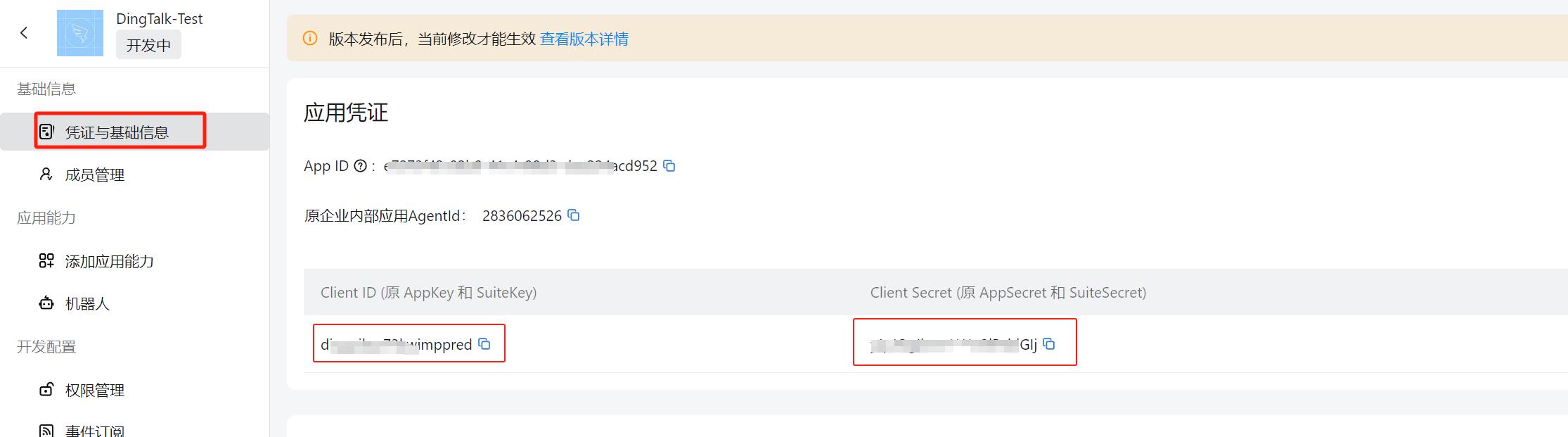
- Click Credentials & Basic Info, get the
Client IDandClient Secret:
- Add the following configuration to
config.jsonin the project root:
- Install the dependency:

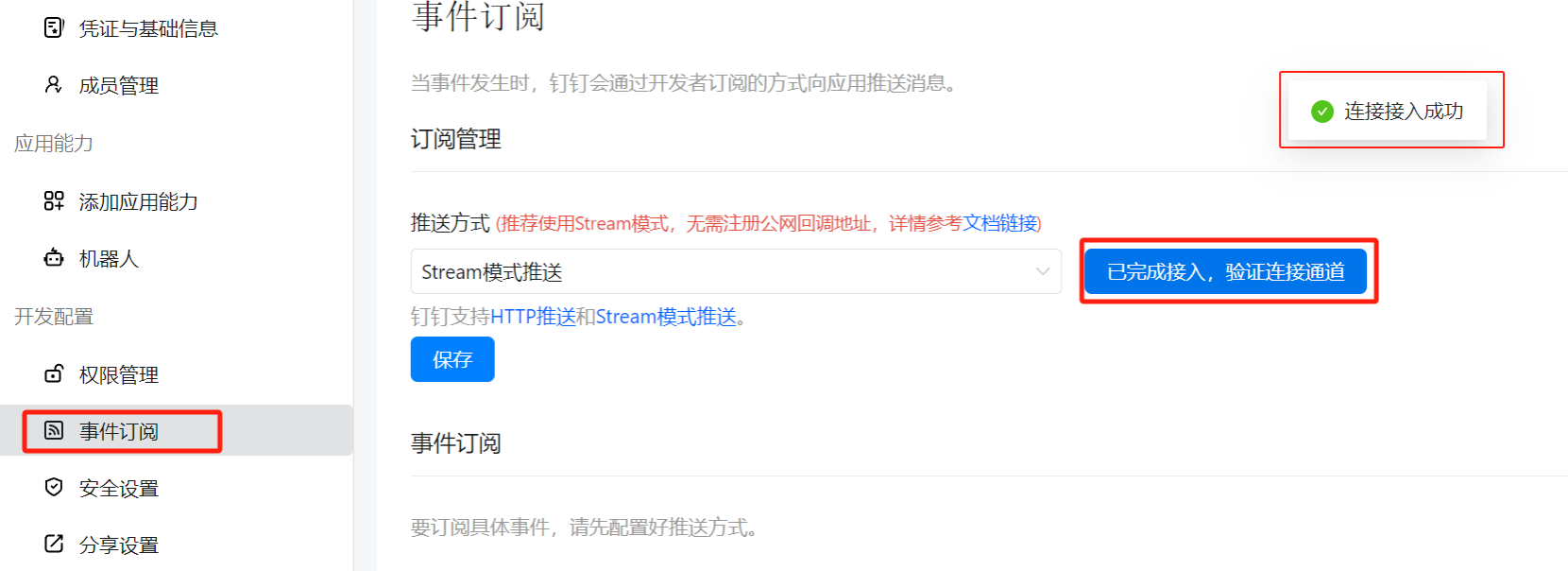
- After starting the project, go to the DingTalk Developer Console, click Event Subscription, then click Connection verified, verify channel. When “Connection successful” is displayed, the configuration is complete:
3. Usage
Chat privately with the robot or add it to an enterprise group to start a conversation: