> ## Documentation Index
> Fetch the complete documentation index at: https://docs.cowagent.ai/llms.txt
> Use this file to discover all available pages before exploring further.
# Feishu (Lark)
> Integrate CowAgent into Feishu via a custom enterprise app
> Integrate CowAgent into Feishu via a custom enterprise app. Supports p2p chat and group chat (@bot), uses WebSocket long connection (no public IP needed), supports streaming typewriter replies and voice messages.
You need to be a Feishu enterprise user with admin privileges.
## 1. Setup
### Option 1: One-click Scan to Create (Recommended)
No need to manually create an app on the Feishu Developer Platform. Start the Cow project, open the web console (default `http://127.0.0.1:9899/`), go to **Channels**, click **Add Channel**, choose **Feishu**, then under the **Scan QR** tab click **One-click Create Feishu App** and scan with the **Feishu App** to complete app creation and connection automatically.
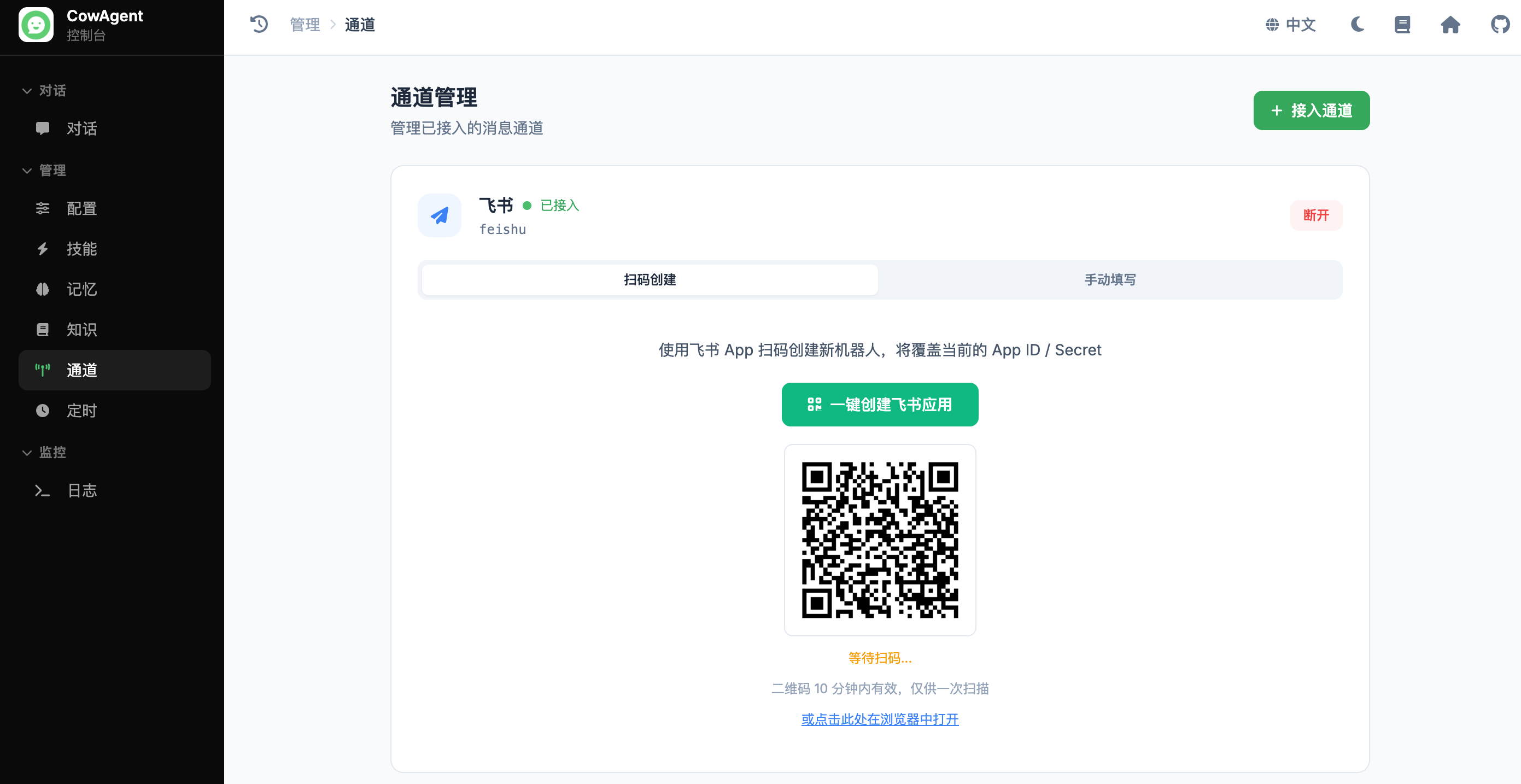 1. Requires `lark-oapi` ≥ 1.5.5.
2. The created app comes with all required permissions (messaging, card read/write, group events, etc.) and event subscriptions pre-configured — no manual setup on the developer console needed. Currently only the Feishu mainland version is supported (Lark international not yet supported).
When starting from CLI without `feishu_app_id` configured, the QR code is also printed to the terminal.
### Option 2: Manual Setup
Manually create a custom app on the Feishu Developer Platform, then connect via Web Console or config file.
**Step 1: Create the App**
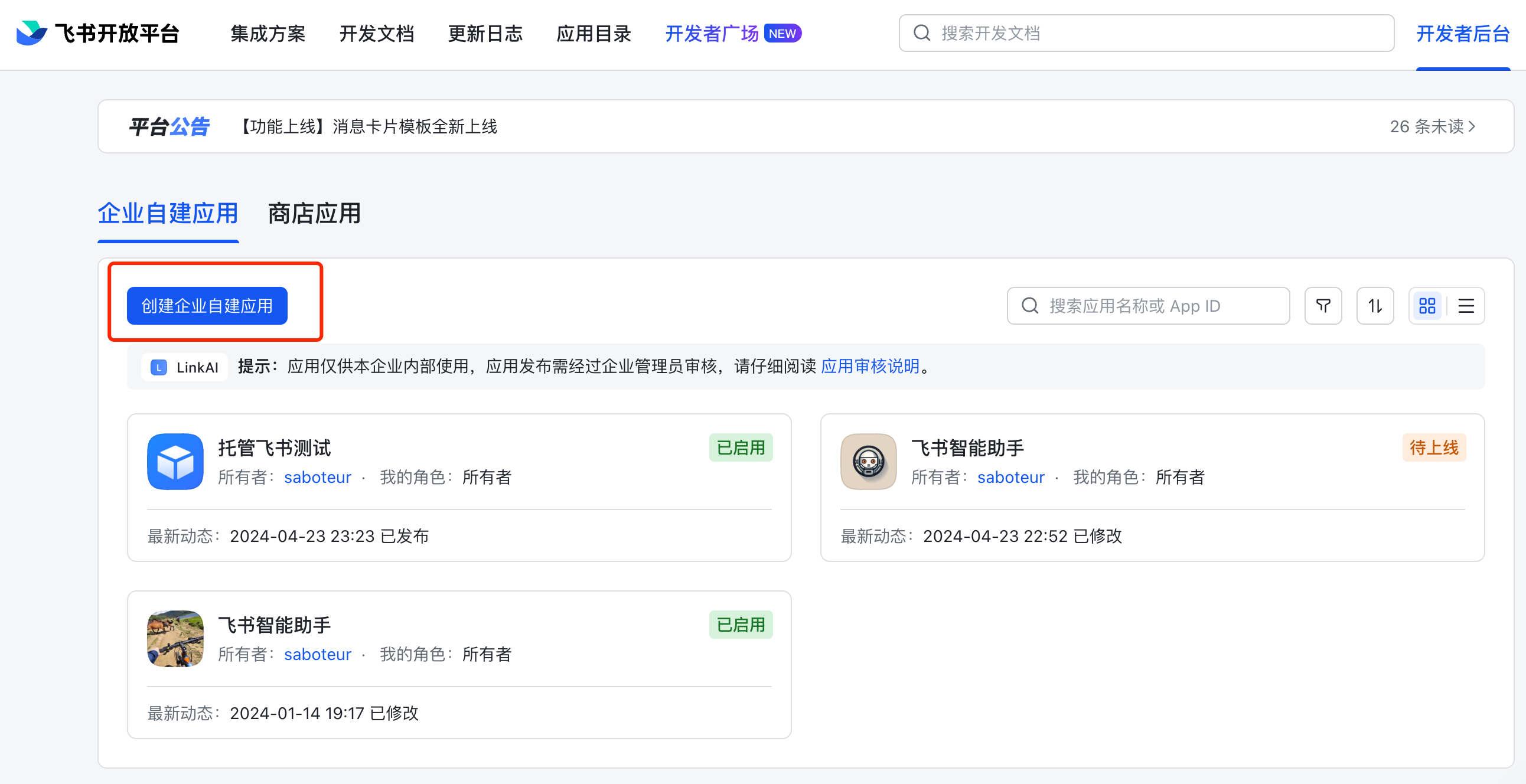
1. Go to [Feishu Developer Platform](https://open.feishu.cn/app/), click **Create Enterprise Custom App**:
1. Requires `lark-oapi` ≥ 1.5.5.
2. The created app comes with all required permissions (messaging, card read/write, group events, etc.) and event subscriptions pre-configured — no manual setup on the developer console needed. Currently only the Feishu mainland version is supported (Lark international not yet supported).
When starting from CLI without `feishu_app_id` configured, the QR code is also printed to the terminal.
### Option 2: Manual Setup
Manually create a custom app on the Feishu Developer Platform, then connect via Web Console or config file.
**Step 1: Create the App**
1. Go to [Feishu Developer Platform](https://open.feishu.cn/app/), click **Create Enterprise Custom App**:
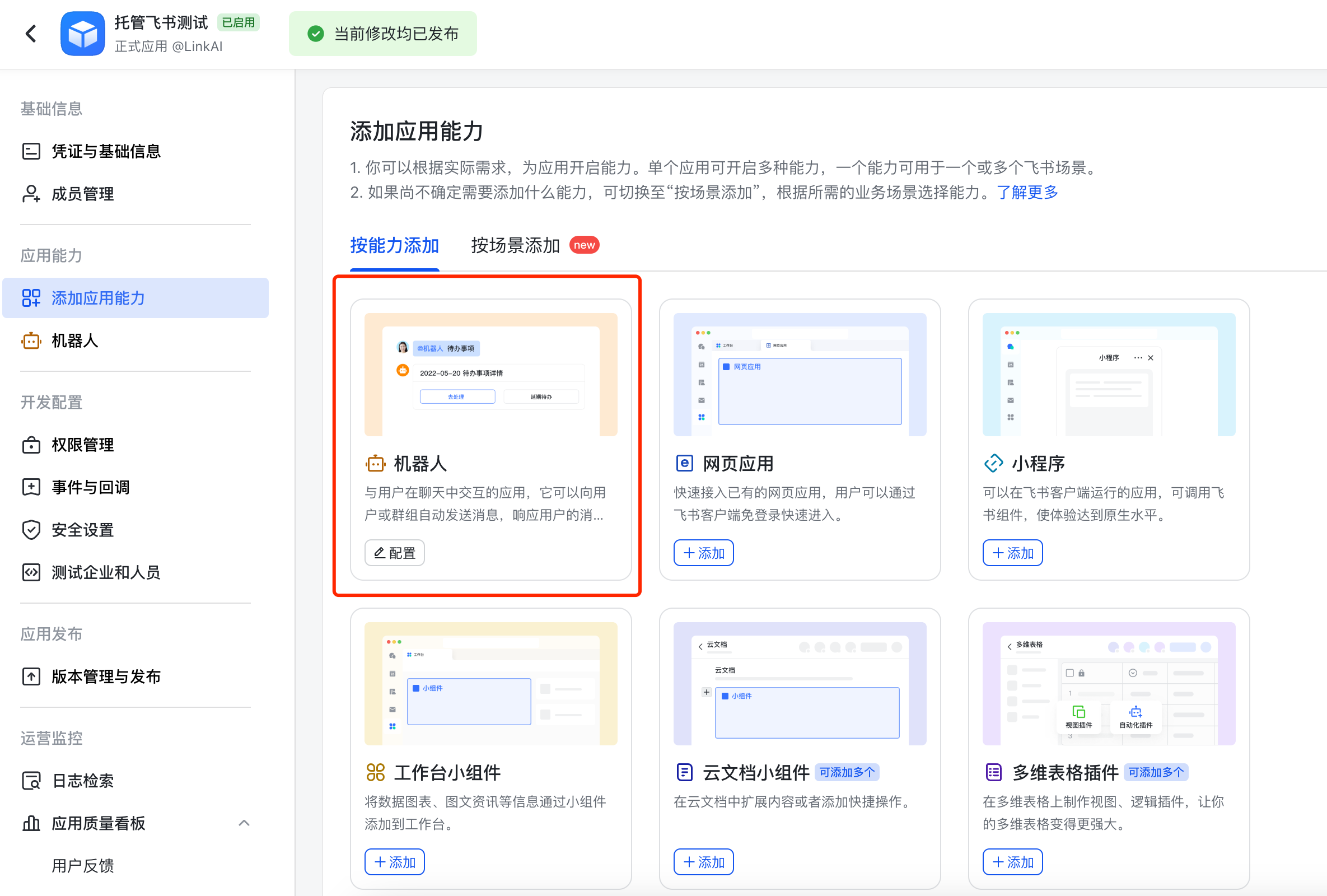
 2. In **Add App Capabilities**, add the **Bot** capability:
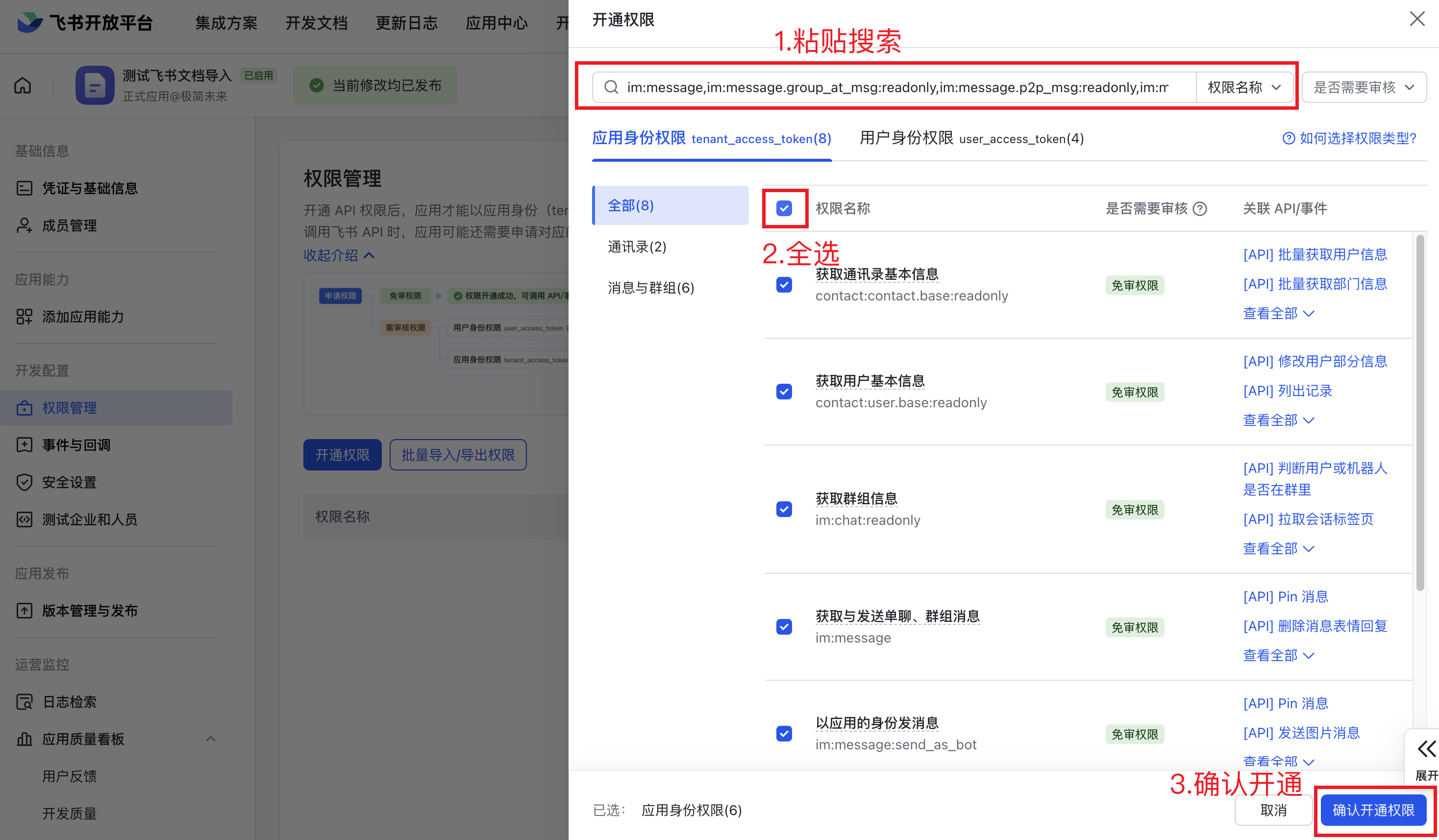
 3. In **Permission Management**, paste the following permissions and **Batch Enable** all:
```
im:message,im:message.group_at_msg,im:message.group_at_msg:readonly,im:message.p2p_msg,im:message.p2p_msg:readonly,im:message:send_as_bot,im:resource,cardkit:card:write
```
3. In **Permission Management**, paste the following permissions and **Batch Enable** all:
```
im:message,im:message.group_at_msg,im:message.group_at_msg:readonly,im:message.p2p_msg,im:message.p2p_msg:readonly,im:message:send_as_bot,im:resource,cardkit:card:write
```
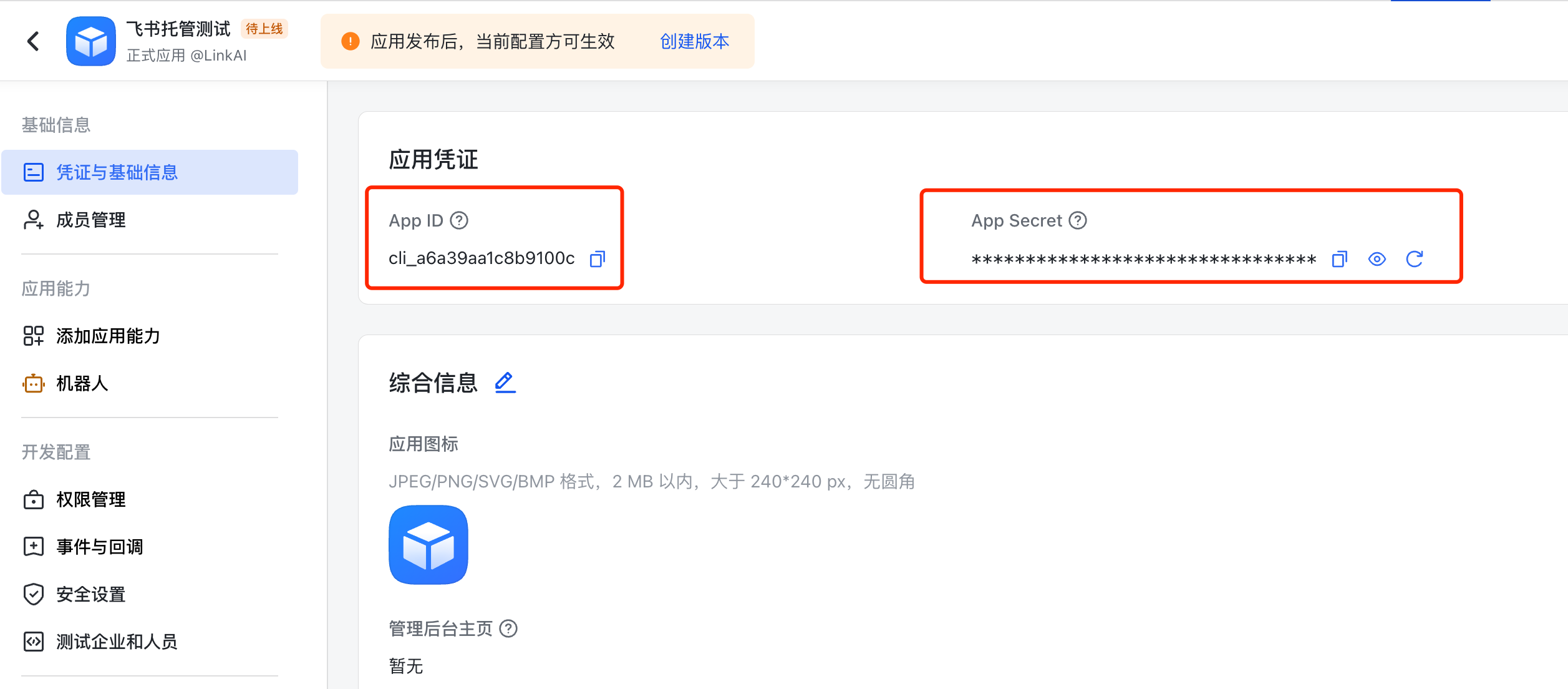
 4. Get `App ID` and `App Secret` from **Credentials & Basic Info**:
 **Step 2: Connect to CowAgent**
Open the web console, go to **Channels**, click **Add Channel**, choose **Feishu**, switch to the **Manual** tab, enter App ID and App Secret, then click connect.
Add the following to `config.json` and start the program:
```json theme={null}
{
"channel_type": "feishu",
"feishu_app_id": "YOUR_APP_ID",
"feishu_app_secret": "YOUR_APP_SECRET",
"feishu_stream_reply": true
}
```
| Parameter | Description | Default |
| --------------------- | --------------------------------- | ------- |
| `feishu_app_id` | Feishu app App ID | - |
| `feishu_app_secret` | Feishu app App Secret | - |
| `feishu_stream_reply` | Enable streaming typewriter reply | `true` |
**Step 3: Publish the App**
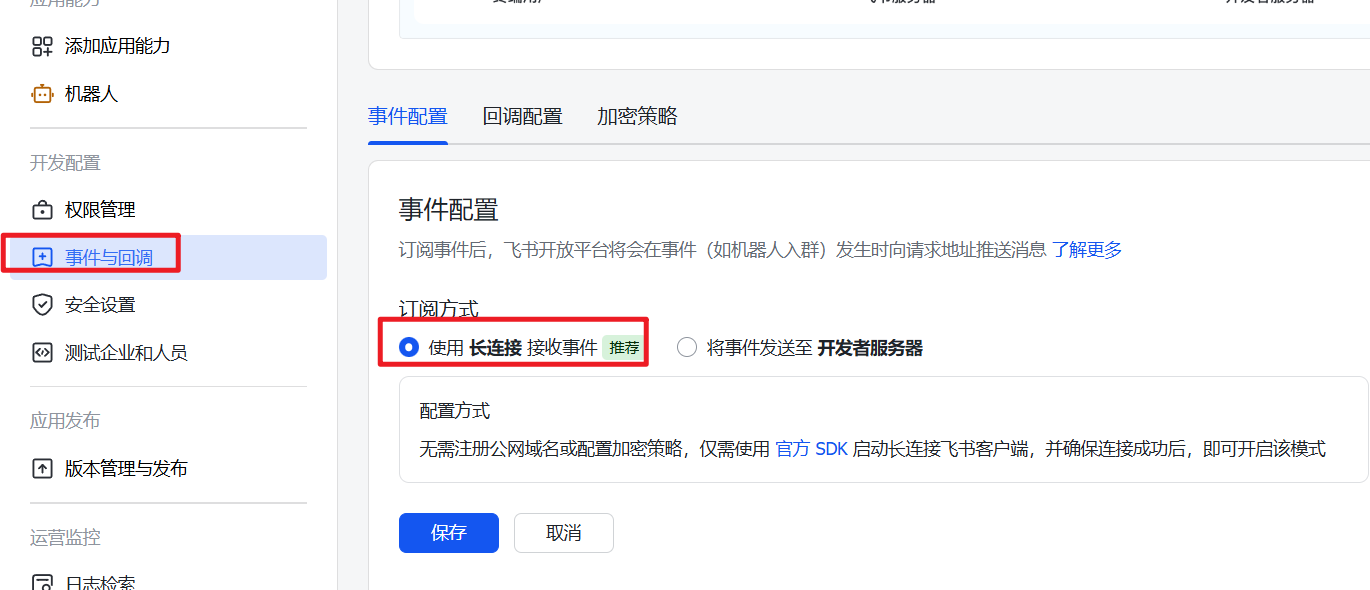
1. After Cow is running, go to **Events & Callbacks** in the Feishu Developer Platform, choose **Long Connection** mode and save:
**Step 2: Connect to CowAgent**
Open the web console, go to **Channels**, click **Add Channel**, choose **Feishu**, switch to the **Manual** tab, enter App ID and App Secret, then click connect.
Add the following to `config.json` and start the program:
```json theme={null}
{
"channel_type": "feishu",
"feishu_app_id": "YOUR_APP_ID",
"feishu_app_secret": "YOUR_APP_SECRET",
"feishu_stream_reply": true
}
```
| Parameter | Description | Default |
| --------------------- | --------------------------------- | ------- |
| `feishu_app_id` | Feishu app App ID | - |
| `feishu_app_secret` | Feishu app App Secret | - |
| `feishu_stream_reply` | Enable streaming typewriter reply | `true` |
**Step 3: Publish the App**
1. After Cow is running, go to **Events & Callbacks** in the Feishu Developer Platform, choose **Long Connection** mode and save:
 2. Click **Add Event**, search for "Receive Message" and choose **Receive Message v2.0**.
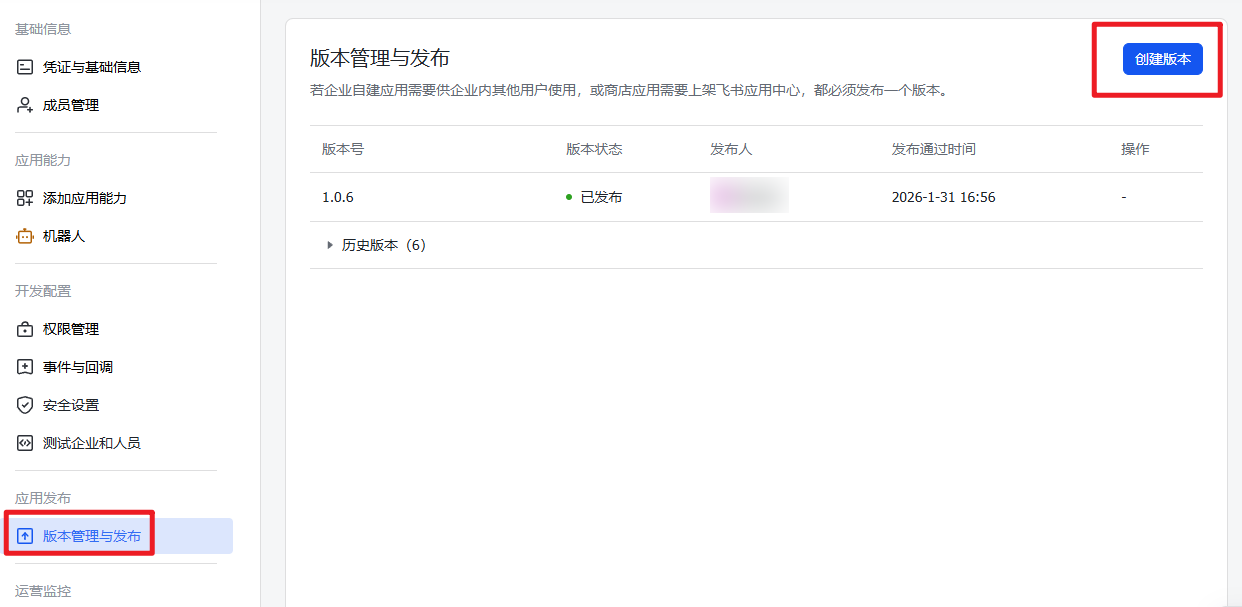
3. Click **Version Management & Release**, create a version and apply for **Production Release**. Approve the request in the Feishu client:
2. Click **Add Event**, search for "Receive Message" and choose **Receive Message v2.0**.
3. Click **Version Management & Release**, create a version and apply for **Production Release**. Approve the request in the Feishu client:
 ## 2. Features
| Feature | Status |
| ----------------- | -------------------------------------------- |
| P2P chat | ✅ |
| Group chat (@bot) | ✅ |
| Text messages | ✅ send/receive |
| Image messages | ✅ send/receive |
| Voice messages | ✅ send/receive |
| Streaming reply | ✅ (powered by Feishu cardkit streaming card) |
Streaming reply requires the `cardkit:card:write` permission (already enabled by one-click creation) and Feishu client version ≥ 7.20. Older clients see an upgrade prompt; if the permission or version is not satisfied, replies fall back to plain text automatically.
## 3. Usage
After connection, search for the bot name in Feishu to start a chat.
To use in groups, add the bot to a group and @-mention it.
## 2. Features
| Feature | Status |
| ----------------- | -------------------------------------------- |
| P2P chat | ✅ |
| Group chat (@bot) | ✅ |
| Text messages | ✅ send/receive |
| Image messages | ✅ send/receive |
| Voice messages | ✅ send/receive |
| Streaming reply | ✅ (powered by Feishu cardkit streaming card) |
Streaming reply requires the `cardkit:card:write` permission (already enabled by one-click creation) and Feishu client version ≥ 7.20. Older clients see an upgrade prompt; if the permission or version is not satisfied, replies fall back to plain text automatically.
## 3. Usage
After connection, search for the bot name in Feishu to start a chat.
To use in groups, add the bot to a group and @-mention it.