> ## Documentation Index
> Fetch the complete documentation index at: https://docs.cowagent.ai/llms.txt
> Use this file to discover all available pages before exploring further.
# DingTalk
> Integrate CowAgent into DingTalk application
Integrate CowAgent into DingTalk by creating an intelligent robot app on the DingTalk Open Platform.
## 1. Create App
1. Go to [DingTalk Developer Console](https://open-dev.dingtalk.com/fe/app#/corp/app), log in and click **Create App**, fill in the app information:
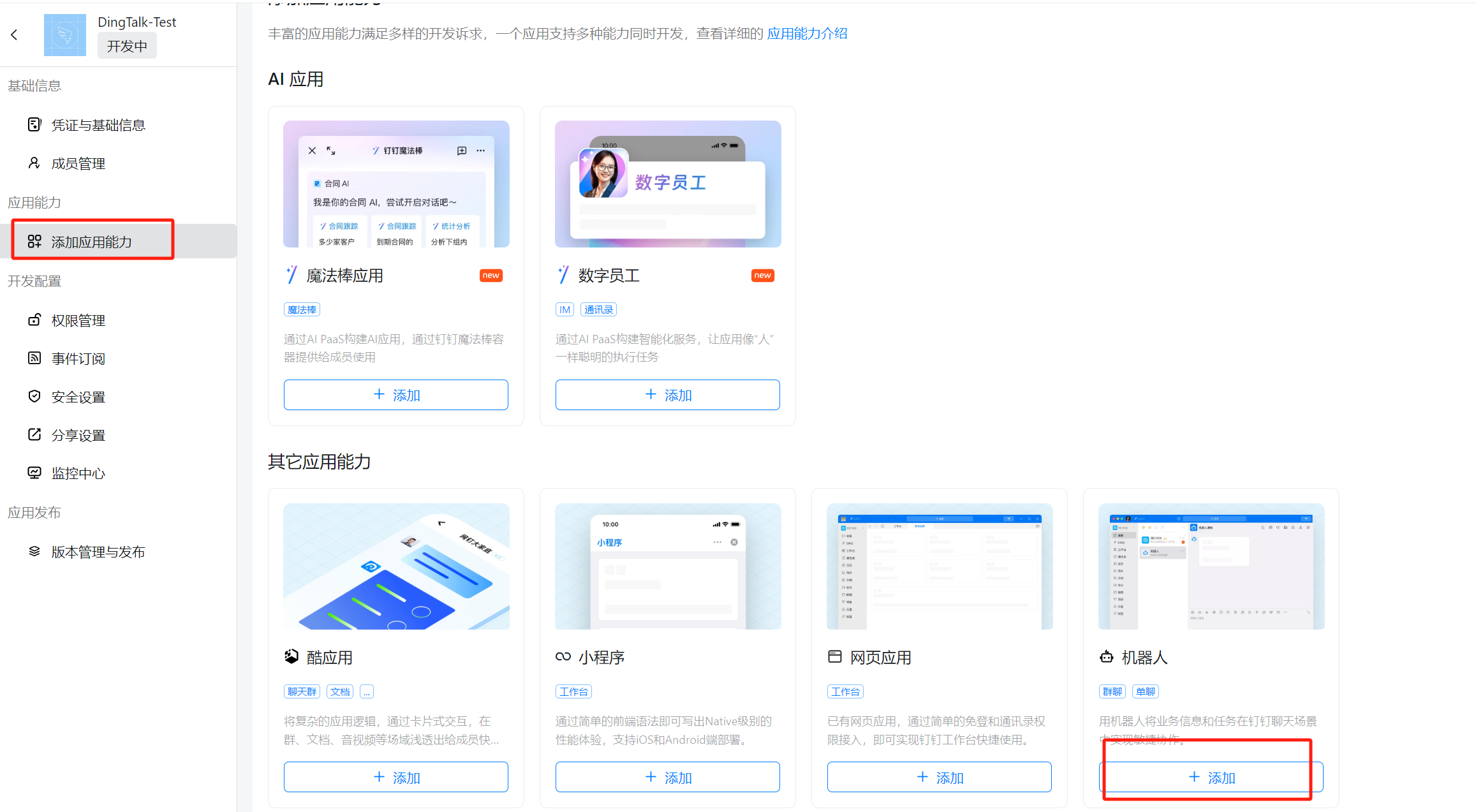
 2. Click **Add App Capability**, select **Robot** capability and click **Add**:
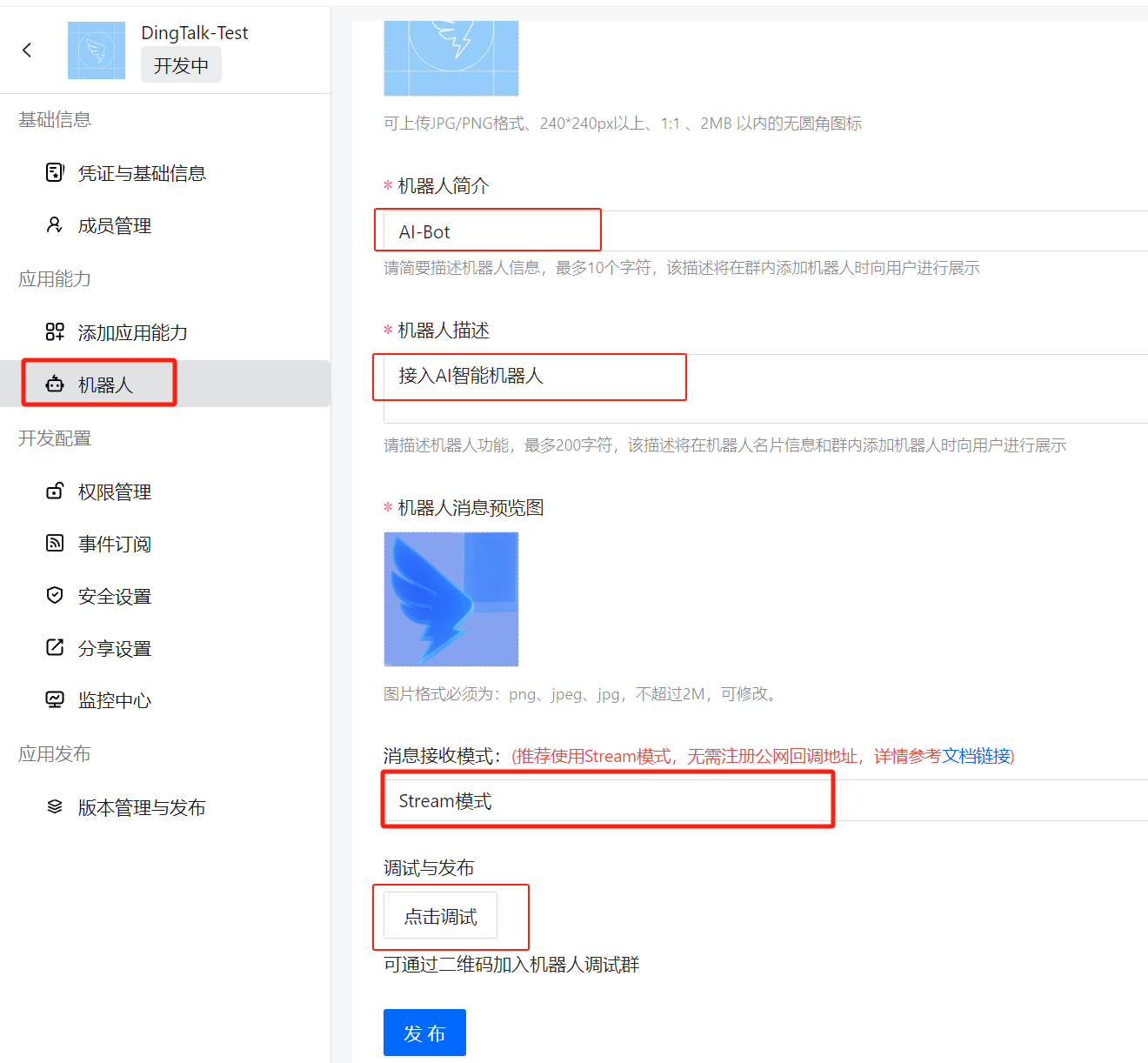
 3. Configure the robot information and click **Publish**. After publishing, click "**Debug**" to automatically create a test group chat, which can be viewed in the client:
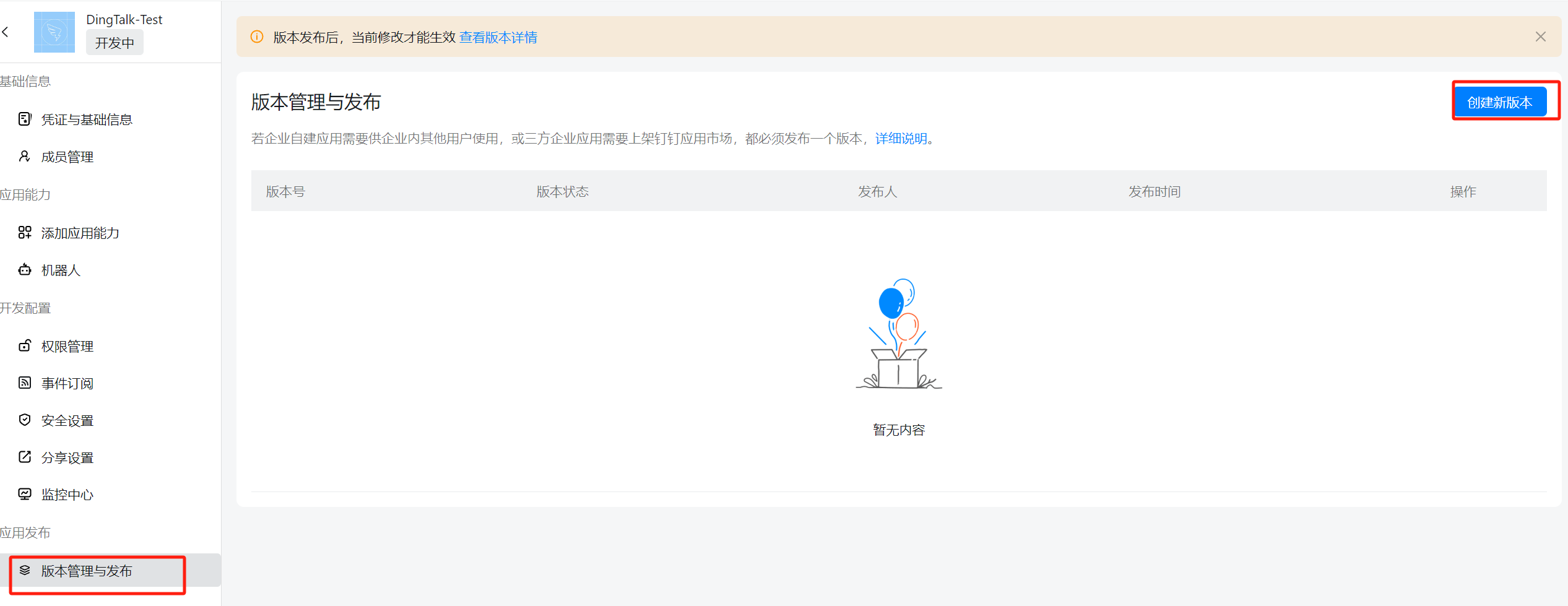
 4. Click **Version Management & Release**, create a new version and publish:
 ## 2. Project Configuration
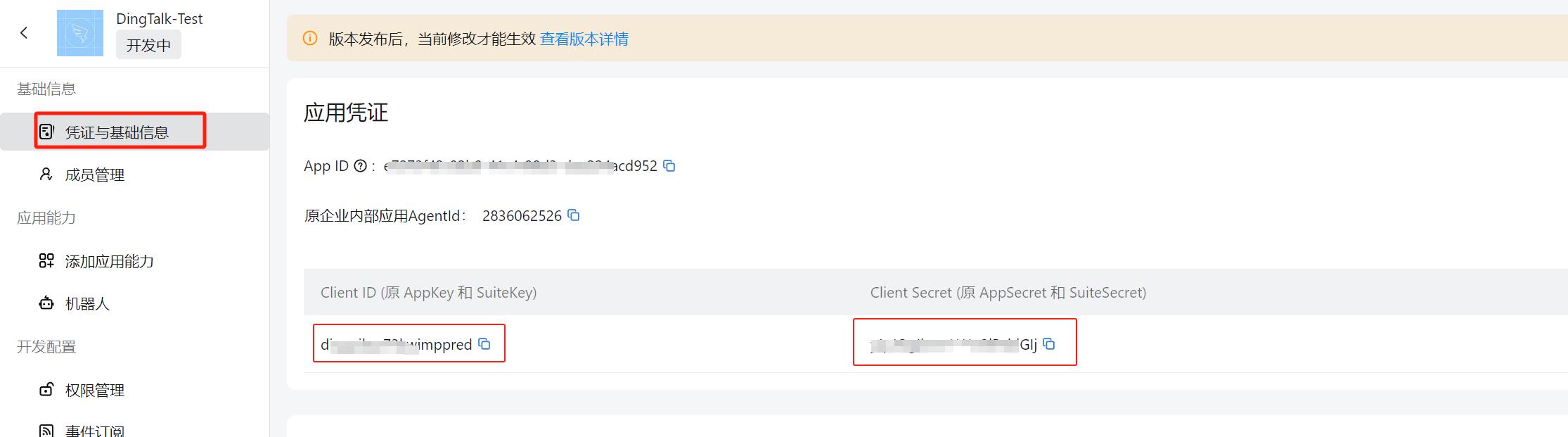
1. Click **Credentials & Basic Info**, get the `Client ID` and `Client Secret`:
## 2. Project Configuration
1. Click **Credentials & Basic Info**, get the `Client ID` and `Client Secret`:
 2. Add the following configuration to `config.json` in the project root:
```json theme={null}
{
"channel_type": "dingtalk",
"dingtalk_client_id": "YOUR_CLIENT_ID",
"dingtalk_client_secret": "YOUR_CLIENT_SECRET"
}
```
3. Install the dependency:
```bash theme={null}
pip3 install dingtalk_stream
```
2. Add the following configuration to `config.json` in the project root:
```json theme={null}
{
"channel_type": "dingtalk",
"dingtalk_client_id": "YOUR_CLIENT_ID",
"dingtalk_client_secret": "YOUR_CLIENT_SECRET"
}
```
3. Install the dependency:
```bash theme={null}
pip3 install dingtalk_stream
```
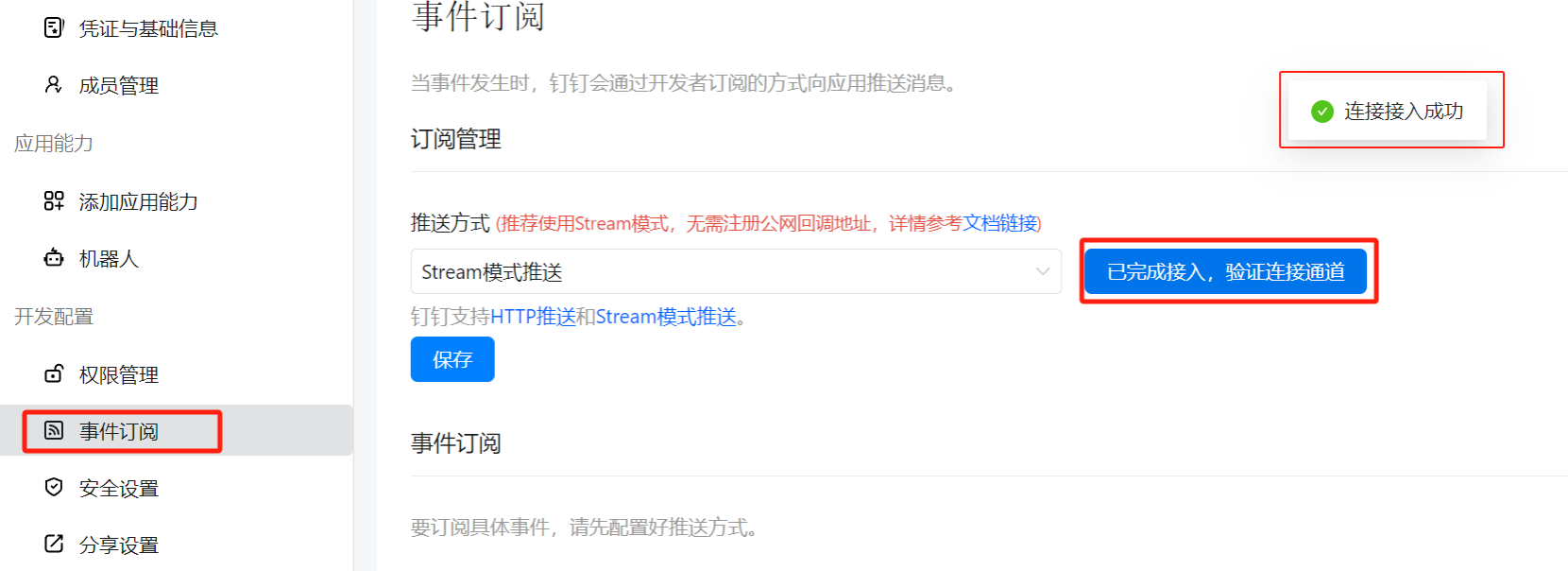
 4. After starting the project, go to the DingTalk Developer Console, click **Event Subscription**, then click **Connection verified, verify channel**. When "**Connection successful**" is displayed, the configuration is complete:
 ## 3. Usage
Chat privately with the robot or add it to an enterprise group to start a conversation:
## 3. Usage
Chat privately with the robot or add it to an enterprise group to start a conversation:
